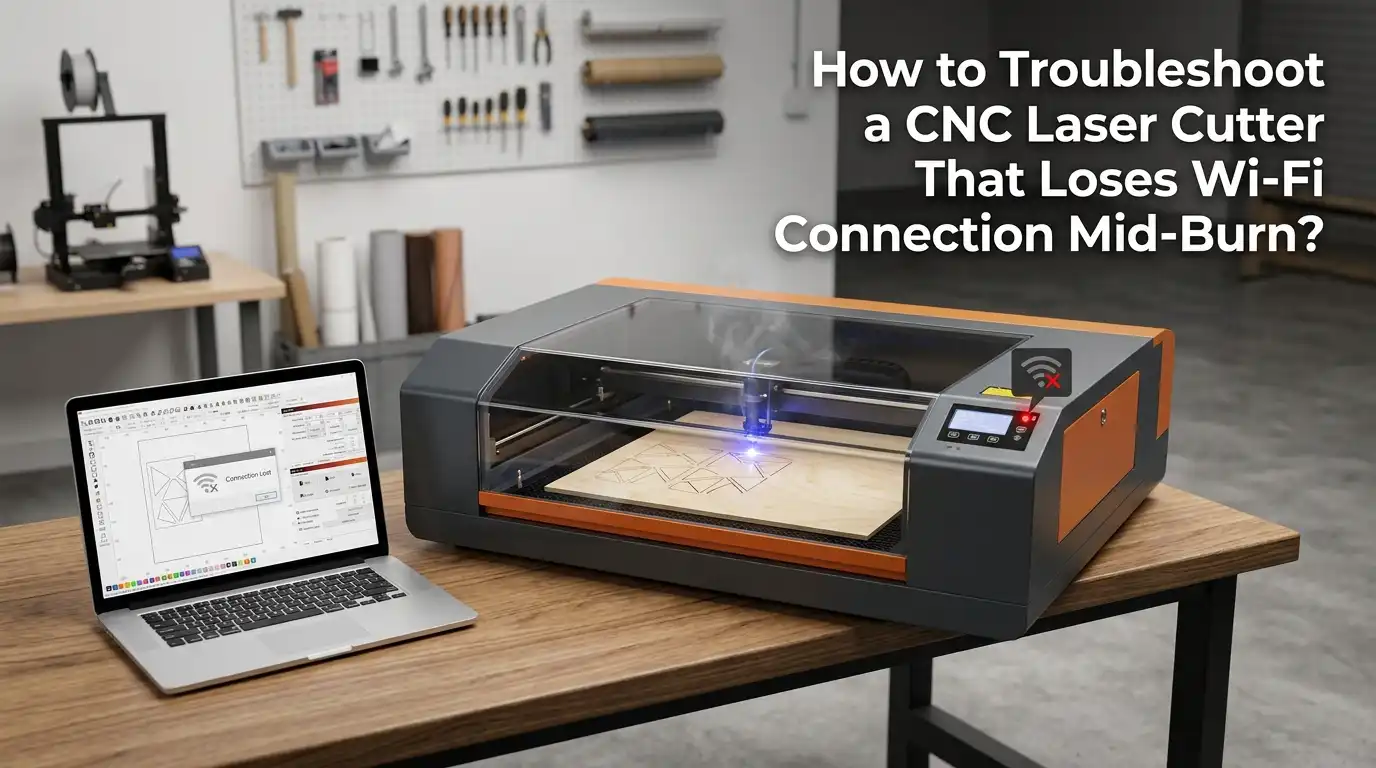
How to Troubleshoot a CNC Laser Cutter That Loses Wi-Fi Connection Mid-Burn?
Few things ruin a laser project faster than a Wi-Fi drop in the middle of a burn. You watch the head freeze, the job pauses, and your material is now scrap.
The frustration is real, and the fix is rarely just one thing. This guide walks you through every cause and every solution in plain language.
You will learn what triggers these dropouts, how to diagnose them fast, and how to stop them from happening again. Let us get your laser cutter running smoothly from start to finish.
Key Takeaways
- Signal strength matters most. A weak Wi-Fi signal in your workshop or garage causes the majority of mid burn disconnects. Move the router closer or add a mesh node.
- Dual band networks confuse laser controllers. Most laser cutters only speak 2.4 GHz. If your router auto switches between 2.4 GHz and 5 GHz on the same SSID, the laser will drop offline.
- Electrical noise and grounding from the laser power supply, stepper motors, and exhaust fans interfere with the controller’s wireless chip. A bonding wire often fixes this.
- Firmware bugs and outdated software cause random drops. Always update the laser firmware, the controller app, and your router firmware before deeper troubleshooting.
- Sleep settings and power saving on your computer or phone kill the connection silently. Disable Wi-Fi power saving for the device sending the job.
- A wired or USB connection is the most reliable backup. When deadlines matter, switch to Ethernet, USB, or an SD card to finish the burn.
Why Your Laser Cutter Drops Wi-Fi Mid Burn
A laser cutter loses Wi-Fi mid burn for one of four reasons. The signal is too weak, the network is unstable, the controller has electrical interference, or the firmware has a bug. Most users blame the laser, but the router and the workshop environment are usually at fault.
Laser controllers use small low power Wi-Fi chips. These chips work fine for short tasks but struggle during long jobs that send constant data. Vibrations, heat, and stepper motor noise add stress to the wireless connection over time.
Identifying the root cause early saves hours of guessing. Start by noting when the drops happen. Do they occur at the same point in every job, or randomly? Random drops point to network issues. Repeatable drops point to firmware or interference.
Check Your Wi-Fi Signal Strength at the Laser
Open a phone or laptop and place it right next to your laser cutter. Run a free speed test. If the signal bars show two or fewer, your signal is too weak for reliable streaming of laser commands.
Most workshops sit far from the home router. Walls, metal shelves, and even the laser enclosure block 2.4 GHz signals. A simple move of the router three feet higher or closer to the workshop often solves the problem instantly.
Pros of testing signal strength first: It costs nothing, takes two minutes, and rules out the most common cause. Cons: A phone’s antenna is stronger than a laser’s chip, so even a “good” reading on your phone can still mean a weak signal at the laser. Use this as a starting point, not a final answer.
Switch to a Dedicated 2.4 GHz Network
Almost every diode and CO2 laser cutter uses 2.4 GHz only. Modern routers often combine 2.4 GHz and 5 GHz under one SSID name. The router auto switches your devices, and during a long burn it can push the laser to a band it cannot reach.
Log into your router admin page. Split the two bands into separate network names, like “HomeWiFi 2.4” and “HomeWiFi 5”. Connect the laser to the 2.4 GHz network only. Connect your computer to the same 2.4 GHz network during burns to keep both devices on the same band.
Pros: This fix is free and solves a huge percentage of mid burn drops. Cons: You lose the convenience of one network name, and your phone may need to be reconnected manually. The trade off is worth it for stable burns.
Reduce Wireless Interference in the Workshop
Your laser cutter shares the 2.4 GHz band with microwaves, baby monitors, Bluetooth speakers, cordless phones, security cameras, and remote control toys. Any of these can knock the laser offline during a job.
Walk through your workshop. Unplug or move anything that uses 2.4 GHz wireless. Pay close attention to cheap USB 3.0 cables and hubs near the laser, because they emit strong noise that drowns out Wi-Fi signals.
Bold tip: Run a Wi-Fi analyzer app on your phone. It shows you which channels are crowded. Switch your router to channel 1, 6, or 11 manually, whichever is least busy. Pros of channel switching: Often fixes drops without buying new gear. Cons: You must repeat this if neighbors change their networks, and apartment users may find every channel crowded.
Update Firmware and Controller Software
Outdated firmware is a silent killer of stable Wi-Fi. Brands like xTool, Ortur, Creality Falcon, Atomstack, and Longer push regular firmware updates that fix wireless dropouts. Skipping these leaves you stuck with old bugs.
Open your laser’s official app or web interface. Look for a firmware update option under settings. Update the laser, then update your control software like LightBurn, LaserGRBL, or the brand specific app. Restart everything afterward.
Pros: Firmware fixes are free and often solve drops you spent hours chasing. They also improve speed and add features. Cons: A bad update can brick the laser, so always read release notes first. Never update during a thunderstorm or with a low battery laptop. Back up your settings before you click update.
Add a Bonding Wire to Reduce Electrical Noise
Many laser cutters develop static buildup during long burns. The static interferes with the controller board and trips the Wi-Fi chip. A bonding wire fixes this for under five dollars.
Run a thin copper wire from a metal screw on the laser frame to a known earth ground, such as the center screw of a grounded wall outlet plate. This drains static safely. Owners of Ortur, Sculpfun, and budget diode lasers report fewer disconnects right after adding this wire.
Pros: Cheap, permanent, and addresses a real electrical cause. It also protects your controller board from frying. Cons: Requires basic comfort with electrical work. Do not connect the wire to a gas pipe or water pipe. Use the outlet ground screw or a dedicated ground rod only.
Move the Router Closer or Add a Mesh Node
If your router lives in the living room and your laser lives in the garage, distance is your enemy. Every wall cuts the signal in half, and metal walls block it entirely. A mesh Wi-Fi node placed within ten feet of the laser ends almost every distance based drop.
Mesh systems like the basic versions from popular brands create a strong second access point. Place the node in the workshop, plug it in, and connect the laser to it. Range extenders also work but often cut bandwidth in half.
Pros of mesh: Strong stable signal, easy setup, and useful for the rest of the home too. Cons: Mesh nodes cost money, and cheap extenders can make the problem worse by creating two competing networks. Pick a true mesh node for best results.
Disable Power Saving on the Sender Device
Your computer or phone may be the real culprit. Laptops and phones drop Wi-Fi power during long idle periods to save battery. If you walk away during a long burn, the device sleeps, and the laser loses commands.
On Windows, open Device Manager, find your wireless adapter, and turn off “Allow the computer to turn off this device to save power.” On a Mac, set “Prevent automatic sleeping when the display is off” in Energy settings. On phones, disable Wi-Fi sleep in advanced Wi-Fi options.
Pros: A two minute setting change with no cost. Often solves drops that only happen on long jobs. Cons: Slightly higher battery drain on laptops. Plug the laptop in during burns to avoid surprises.
Use a Static IP for the Laser Cutter
Routers reassign IP addresses on a schedule called the DHCP lease. When the lease ends mid burn, the laser may briefly drop offline while it gets a new address. LightBurn and other software then report a connection lost error.
Log into your router. Find the DHCP reservation or static IP section. Assign your laser a fixed IP based on its MAC address. Now the laser keeps the same address forever, and software always finds it.
Pros: Eliminates a sneaky cause of mid burn drops. Makes troubleshooting easier because the IP never changes. Cons: Slightly technical for first time router users. Set the static IP outside your normal DHCP range to avoid conflicts with other devices.
Switch to USB or Ethernet for Critical Jobs
When a deadline looms, do not trust Wi-Fi. A USB cable or Ethernet cable bypasses every wireless issue we have covered. Most laser cutters support at least one wired option, and many support both.
USB is simple and works with almost any laptop. Ethernet offers longer cable runs and zero interference. Both options let you walk away from a four hour job without anxiety. Use a quality shielded USB cable and keep it away from the power supply.
Pros of wired: Rock solid reliability, faster data transfer, and no router involvement. Cons: A cable across the floor is a trip hazard, USB cables can pick up electrical noise from the laser, and longer USB runs over fifteen feet often fail. Use ferrite chokes on USB cables for extra protection.
Run Jobs Offline Using SD Card or Internal Storage
The safest method of all is to skip the network entirely. Most modern laser cutters accept SD cards, microSD cards, or USB sticks. You save the job file on the card, insert it into the laser, and start the burn from the laser’s own screen.
This method removes Wi-Fi, computer, and software from the equation. The laser reads the file directly. Even if your power flickers on the laptop, the burn continues. xTool D series, Creality Falcon, and many others support this workflow.
Pros: The most reliable burn possible, perfect for production runs and unattended jobs. Cons: No live preview from your computer, and you must master the laser’s onboard controls. Some lasers limit file size on the SD card, so test before relying on it.
When to Replace the Wi-Fi Module or Controller Board
If you have tried every fix and drops continue, the Wi-Fi module itself may be failing. Heat, vibration, and time wear out small antennas and chips. Symptoms include drops that get worse over weeks, drops only at higher temperatures, or a laser that no longer broadcasts its own AP mode.
Contact the manufacturer first. Many cover this under warranty for the first year. If out of warranty, replacement modules cost twenty to fifty dollars for most brands and install with a few screws and a ribbon cable.
Pros: A new module restores like new performance. Cons: Some brands solder the Wi-Fi chip to the main board, forcing a full controller replacement. Always check before buying. Take photos of every cable before you disconnect anything.
Frequently Asked Questions
Why does my laser only disconnect on long jobs and not short ones?
Long jobs expose every weakness in your network. Short jobs finish before power saving, DHCP lease renewal, or thermal drift kicks in. Long jobs hit all three. The fixes in the static IP section, the power saving section, and the bonding wire section solve this combination most reliably.
Is Wi-Fi or USB better for laser cutters?
USB wins for reliability, and Wi-Fi wins for convenience. For one off projects and small burns, Wi-Fi is fine. For paid jobs, long burns, and unattended runs, use USB or an SD card. Many experienced users keep both options ready and switch based on the job.
Can a 5 GHz router cause laser cutter problems?
A pure 5 GHz network will not connect to a 2.4 GHz only laser at all. The trouble starts with dual band routers using one SSID. They look like one network but switch bands without warning. Splitting the SSIDs solves this in minutes.
How do I know if my laser’s Wi-Fi chip is dying?
Watch for three signs. Drops get more frequent over time, the laser fails to broadcast its hotspot mode, or the signal strength shown in the app drops far below your phone’s reading at the same spot. Two or more of these signs together point to a hardware fault.
Will a Wi-Fi extender fix mid burn drops?
Sometimes yes, often no. Cheap extenders create a second weaker network and can double the drops. A true mesh node with a wired backhaul is far better. If you must use an extender, place it halfway between the router and the laser, never right next to the laser.
Does LightBurn have a setting to prevent mid burn disconnects?
LightBurn does not have a magic setting, but you can reduce drops by using the streaming mode that fits your controller, keeping the software updated, and assigning the laser a static IP. For Ruida and similar controllers, sending the file to the controller before starting also helps because the network is no longer needed during the actual burn.

Hi, I’m Leah Ray — the voice behind CraftBench Vault. I’m a passionate woodworking enthusiast dedicated to reviewing the best wood cutting tools and woodworking products. Through honest research and hands-on experience, I help fellow crafters make smarter buying decisions. Welcome to my workshop!